Vista help
One button, no app, stabilized video. Start here.
Stabilization is on by default. To record in 2K, change one setting. Set 2K in 4 steps
Top fixes
- Set 2K, still 1080p?Check the first line of config.txt, Update Configuration, says Y. The fix
- A photo stopped the video?That's how the Vista works. Take photos in standby to keep a recording running. Why
- Computer doesn't see it?Press the reset pinhole, then try another USB-C cable and port. All the steps
Quick start
What's in the box, charging, your first clip and 2K.
What's in the box
- Vista camera glassesDark tinted lenses fitted
- Clear lenses
- USB-C cable
- Case
- Cleaning cloth
- Carry bag
- OTG adapter
Charge
- Plug in. Lift the rubber cover on the underside of the right arm and plug in the USB-C cable.
- Watch the lights. The glasses vibrate twice. All three charging lights flash on, then one stays lit.
- Charged. When that light goes out, it's charged. You can record while plugged in.
Record
Press the button once. The glasses vibrate three times and start recording. The red light flashes the whole time.
Set 2K
Your Vista arrives set to 1080p. For full 2K:
- Open config.txt. Plug the glasses into your computer and open config.txt on the glasses' drive.
- Set Videosize. Change the Videosize value from
1080P30to1440P30. - Turn on the update. Change the first line, Update Configuration, from
NtoY. - Save and power on. Save, eject, unplug and turn the glasses on. You're recording in 2K.
Where the controls are
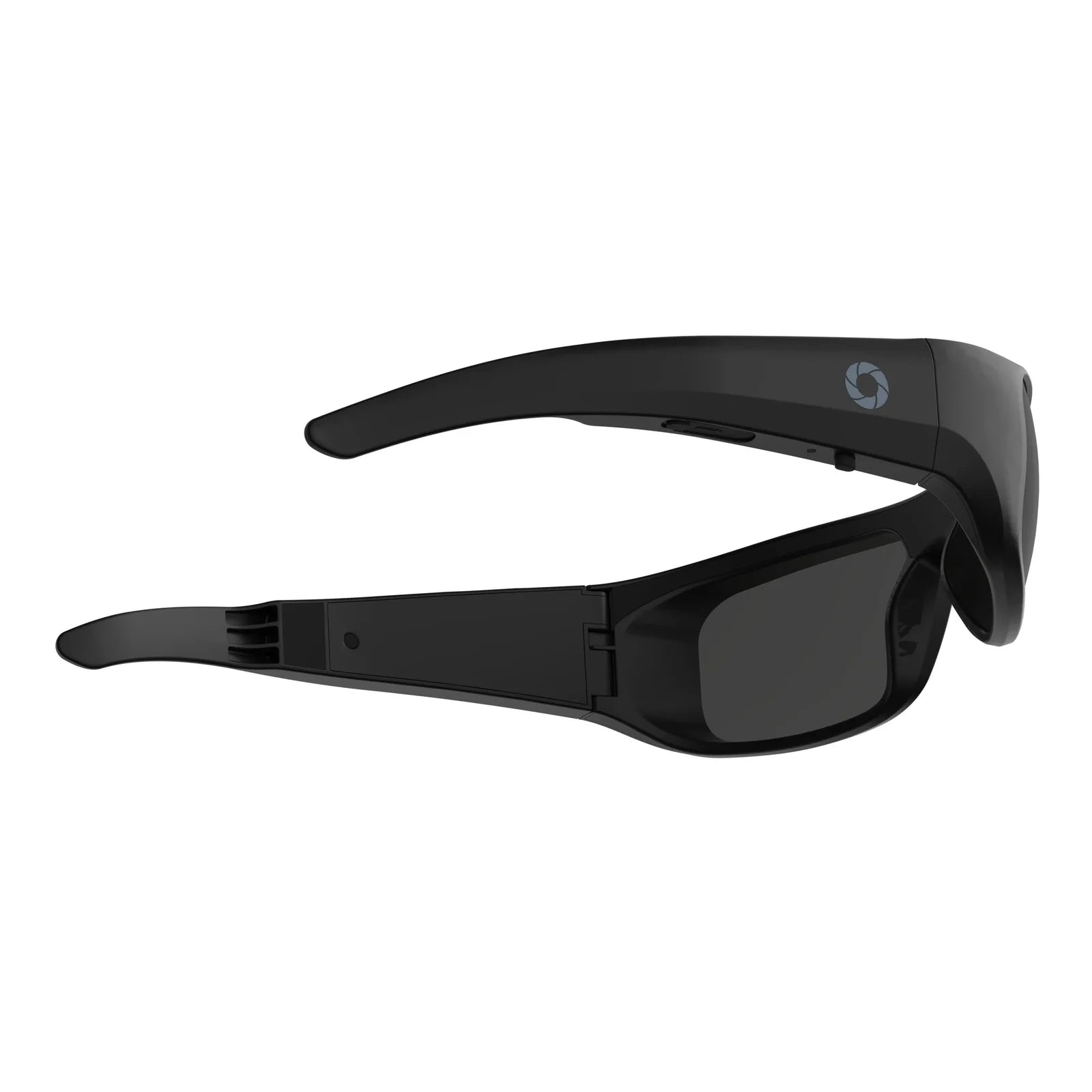
- 1ButtonPower, record, photo
- 2Reset pinholePress with a fine tip; no files are deleted
- 3USB-C portUnder the rubber cover: charging and files
Everything is on the right arm, in this order: button, reset pinhole, USB-C port.
Button and lights
One button on the right arm, and what each light means.
The one button
On the right arm.
- FromOff Click once Turns on and starts recording (3 vibrations)
- FromRecording Double-click Stops and saves; standby (1 vibration)
- FromStandby Double-click Records again (2 vibrations)
- FromStandby Click once Takes a photo (2 vibrations, blue flash)
- FromAny Hold Saves and turns off
A photo while recording stops the recording. Take photos in standby, then double-click to go back to video.
What the lights mean
- Flashing redRecording
- Solid redStandby
- Blue, one flashPhoto taken
- One charging light, steadyCharging
- All three charging lightsConnected to a computer
The red and blue lights face inward, on the inside of the frame above your nose. Hold the glasses slightly away and look up to see them.
Settings (config.txt)
Resolution, stabilization, sound, vibration and more.
Your settings live in config.txt on the glasses. Change a value, set the first line to Y, save, and turn the glasses on.
| Setting | What it does | Options |
|---|---|---|
Update Configuration | Applies your changes. Set to Y every time. | YN |
Date Time Watermark | Sets the clock (type the date and time) and stamps it on video | Y (show)N (hide) |
Videosize | Resolution. 1440P30 is 2K. | 1440P301080P30 (as shipped)720P30 |
Segment Time | Minutes per file before a new one starts | 510152030 |
Electronic Image Stabilization | Smooths shake. On by default. | YN |
Photosize | Photo size in megapixels | 24M20M16M13M8M |
Logo String | Your own text on the video | any textNULL (none) |
Format | Erases the memory | YN |
Motor Vibration | Vibration feedback | YN |
Movie Audio | Records sound | YN |
Keep the spacing and the text in square brackets exactly as it is. Change only the value at the start of a line, in plain text.
Recipes
- Silent mode: set Motor Vibration to N. To record video with no sound too, set Movie Audio to N. Then Update Configuration to Y.
- Turn off stabilization: set Electronic Image Stabilization to N and Update Configuration to Y. Set it back to Y to turn it on again.
Fix a problem
14 answers: problems, footage and stabilization. Type to filter.
No match. Try another word, or contact us.
Recording & files
8I set 2K but it still records 1080p Most asked
The glasses stopped recording on their own
My computer doesn't see the glasses Most asked
The red light stays solid for a minute, then it turns off
How do I get videos onto my computer?
My videos won't play
What does stabilization do?
Does it have an app or a card slot?
Battery & charging
2The glasses turn off while recording
Can I record while charging?
Buttons & lights
2I took a photo and the recording stopped Most asked
Can people see that I'm recording?
Hardware
2Something else isn't right
How do I change the lenses?
Warranty and help
Your warranty, and how to reach us.
Warranty
Your Vista has a 6-month warranty from the day it arrives, covering defects in materials and workmanship. A warranty replacement does not restart the clock. Coverage runs 6 months from the day you received your original product. Warranty and returns
Still stuck? We'll help.
Email support@ivuecamera.com and we reply within one business day, Monday to Friday. Or call (435) 500-9747, answered 24/7.